
Task board
The task board visualizes your tasks, allowing you to organize and connect them flexibly and intuitively.
Task Cards
Section titled “Task Cards”Each task is represented with a card with:
- A title,
- A start connector (shown as a circle on the left side)
- which can be clicked to complete a task
- which can be dragged to an end connector of another task
- An end-connector (shown as a circle on the right side) that can be used to link tasks together by dragging to the other start connector
- A border around the card that you can resize
- You can move a task around by dragging the task.
- Card labels
You can also right click on a task to perform multiple actions, for more information see Task Context Menu.
Multi-select
Section titled “Multi-select”By holding down shift (or control or meta) you can select multiple multiple cards. By clicking/touching a card again while holding down the shift key you will remove the selected card from the selection. You can cancel the selection by clicking/tapping on the map or by clicking another card while not holding down a key.
When multiple cards are selected you can drag all of them around.
Multiple actions
Section titled “Multiple actions”When you have multiple cards selected you can move them as a group but also create multiple connections at once.
Select multiple cards, then drag a connection by holding down the mouse/touch on the connector (the circles at the end of the card) and dragging them to another one. If you drag from a card within the selection, then all cards in the selection will attempt to connect to the destination. If you drag a connection from an unselected card to any of the cards that are selected you the unselected card will attempt to connect to all cards in the selection.
Bottom panel
Section titled “Bottom panel”In the bottom right of the screen you find the bottom panel.
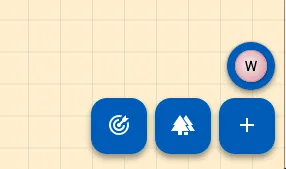
On the first row you will see the available pins. Pins are round icons that can be dragged to a task.
On the second row you have three buttons, from left to right:
- The focus button, shown as arrow hitting at target, which when clicked will center the next available task. Is invisible if all tasks are blocked.
- The filter toggle, shown as a tree or a forest, which when clicked will hide all blocked tasks, so that only task that can be performed are shown.
- If the icon is a forest, no blocked tasks is hidden
- If the icon is a single tree, all blocked tasks are hidden, allowing you to focus on the tasks that can be done.
- The create new task button, shown as a plus, which can be used to create a new task.
Header
Section titled “Header”At the top of the screen, you will find the taskboard header. See the Taskboard header for more information.